Web User Interface
Overview
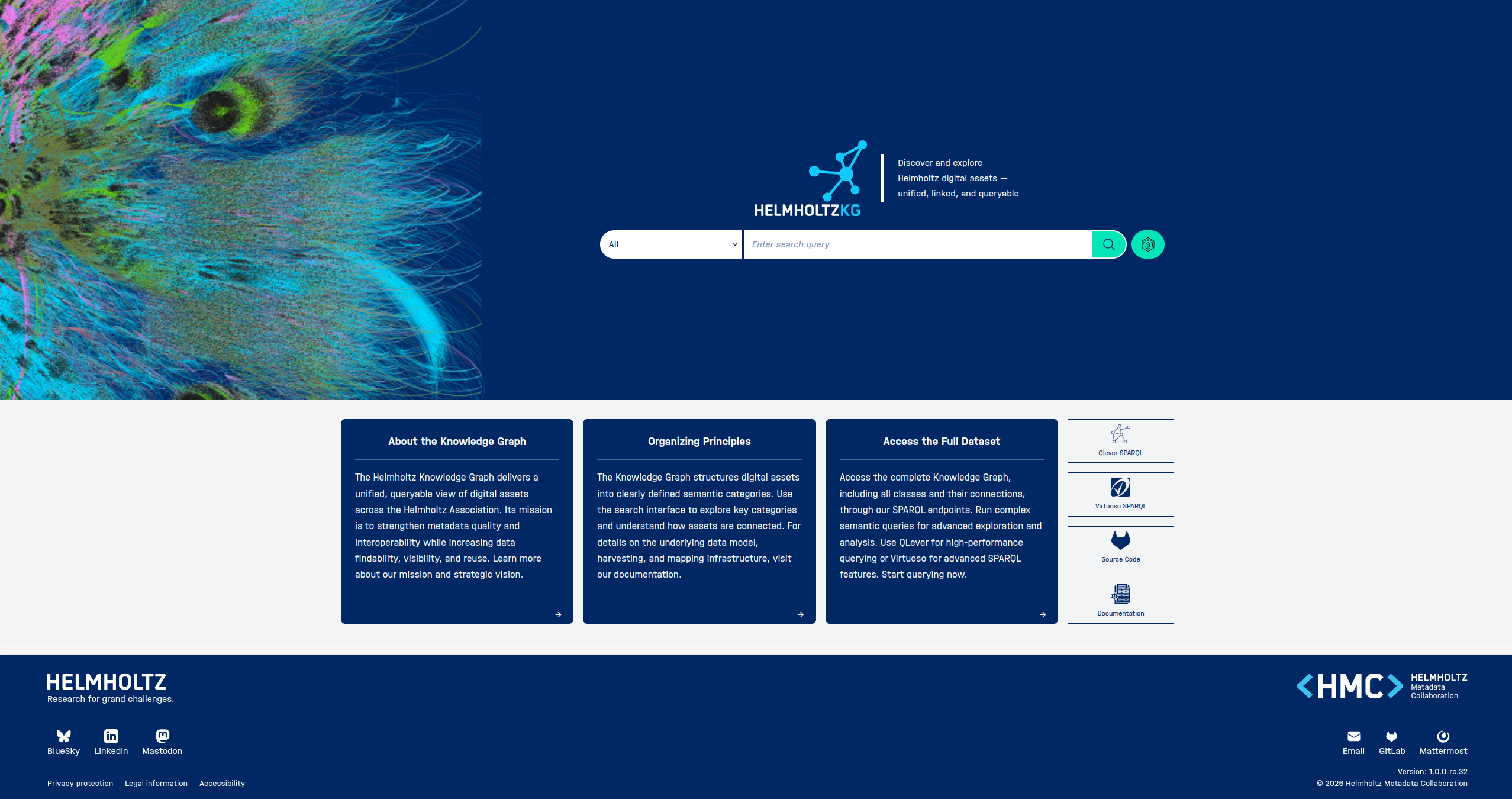
The web Helmholtz Knowledge Graph (HelmholtzKG) user interface is a web platform for discovering and exploring digital research assets across the Helmholtz Association. It brings datasets, tools, and resources together in one place — making them easier to find, connect, and reuse.
HelmholtzKG — Key Feature Reference
Understanding Categories • Filter Behaviour • Link Behaviour
1. Understanding Categories
HelmholtzKG organises all content into eight high-level categories. These are displayed as clickable cards on the Search Results Overview page, and as tabs in the category navigation bar on the Search Results page. Understanding what each category contains helps you navigate directly to the type of resource you need.
1.1 The Eight Categories
Every record in the Knowledge Graph belongs to exactly one category.
| Category | Contains | Typical Examples |
|---|---|---|
| Datasets | Research data files and collections | Data files, measurement outputs, experimental results |
| Software | Tools, code, and software packages | Applications, libraries, analysis scripts, pipelines |
| Documents | Publications, reports, and written resources | Papers, technical reports, preprints, deliverables |
| Instruments | Scientific instruments and equipment | Measurement devices, telescopes, particle accelerators, sensors |
| People | Researchers and contributors | Individual scientists, engineers, data stewards |
| Institutions | Helmholtz centres and organisations | Research centres, universities, funding bodies |
| Events | Conferences, workshops, and activities | Academic events, community meetings, training activities |
| Data Catalogs | Curated collections of datasets | Repositories and portals hosting multiple datasets |
💡 Tip: Categories with zero results for your current search are shown as greyed-out cards on the Overview page and cannot be selected. If a category you expect to have results shows 0, try broadening or correcting your search term.
1.2 How Semantic Types Map to Categories
Each record is assigned one or more semantic types from schema.org or the DataCite metadata schema. These finer-grained types are grouped into the eight user-facing categories. The table below lists the types that fall under each category.
Note that a record can have more than one semantic type assigned to it. For example, a scholarly article is also a creative work and would carry both schema:ScholarlyArticle and schema:CreativeWork. Similarly, a software application that is also part of a dataset may carry both schema:SoftwareApplication and schema:Dataset, meaning the record could appear in both the Software and Datasets categories.
| Category | Semantic Types |
|---|---|
| Documents | schema:CreativeWork, schema:ScholarlyArticle, schema:Report, schema:Thesis, schema:Article, schema:Periodical, schema:Book, schema:Chapter, schema:Dataset, schema:PresentationDigitalDocument, schema:Collection, schema:Event, schema:WebPage |
| Datasets | schema:Dataset |
| Software | schema:CreativeWork, schema:SoftwareSourceCode, schema:SoftwareApplication |
| Instruments | datacite:Instrument, schema:CreativeWork |
| People | schema:Person |
| Institutions | schema:Organization, schema:FundingAgency, schema:GovernmentOrganization, schema:EducationalOrganization, schema:NGO |
| Events | schema:Event |
| Data Catalogs | schema:DataCatalog |
1.3 Using Categories Effectively
- Always check the category bar first after searching to confirm you are in the right category before applying filters.
- If you are unsure which category a resource belongs to, start on the Overview page and scan the result counts — the highest count usually indicates the best match.
- The same entity may appear in different categories depending on how it has been described in the source data. For example, a software tool might also appear as a Document if it has an associated publication.
- Use the Semantic Type filter within a category to narrow down to a specific type of record within that category.
2. Filter Behaviour
Filters are available on the Search Results page (one level below the Overview) and allow you to narrow down the records shown within a given category. This section explains the general rules that apply to all filters, which filters are available, and how to use each type.
2.1 General Rules
The following rules apply to all filters regardless of type:
- Filters only appear on the Search Results page, after you have selected a category from the Overview page. They are not available on the Landing page or the Overview page itself.
- Filters are derived from the actual data in the current result set. Each filter option shows only values that actually appear in the current results.
- Up to 100 filter values are shown per filter category. If you need a value not listed, use the search additional filter text box to locate it.
- Selecting multiple values within the same filter category uses OR logic — results match any of the selected values.
- Selecting values across multiple filter categories uses AND logic — results must satisfy all active filter categories simultaneously.
- Clicking clear this filter removes all selected values within that filter category. To remove a single value, untick its checkbox.
- Removing a filter instantly refreshes the result list — there is no separate Apply button.
Note: Filters interact with pagination. When you apply a filter, the result list resets to page 1. Your selected filters remain active if you switch categories using the navigation bar.
2.2 Available Filters
| Filter | Control type | Purpose |
|---|---|---|
| Semantic Type | Checkbox | Narrow by the formal type assigned to a record |
| Keywords | Checkbox | Filter by topic tags associated with records |
| Provider / Publisher | Checkbox | Restrict to records from a specific organisation |
| License | Checkbox | Show only records under a given license |
| Date Published | Date range slider | Restrict to records published within a time window |
| Date Created | Date range slider | Restrict to records created within a time window |
2.3 Checkbox Filters
Most filters are presented as a list of checkboxes, one per distinct value found in the current results.
- Tick one or more checkboxes to apply that filter. Multiple selections within the same category are combined with OR logic.
- The search additional filter text box, below the checkbox list, lets you search for a value not visible in the top 100 items.
- Click clear this filter to deselect all checkboxes in that filter category.
2.4 Filter Logic
| Scope | Logic | Effect |
|---|---|---|
| Multiple values within the same filter category | OR | Results match any of the selected values — broadens results |
| Values across different filter categories | AND | Results must satisfy all active categories simultaneously — narrows results |
💡 Example: Selecting Keywords "climate" and "ocean" returns records tagged with either. Also applying a License filter of "CC-BY" then restricts those results to CC-BY licensed records only.
2.5 Date Range Filters
Date filters are displayed as interactive bar charts with a range slider below. The bar chart shows the distribution of records over time, giving you a visual sense of when records were created or published before you commit to a range.
- Drag the left handle of the slider to set the start date.
- Drag the right handle to set the end date.
- The selected date range is shown as a label below the chart and updates as you drag.
- Click clear to reset the date filter and return to the full date range.
💡 Tip: Date range filters always use OR logic internally — a record is included if its date falls anywhere within the selected window.
2.6 Large Result Sets and Filter Strategy
If a search returns a very large number of results (e.g. tens of thousands), the page displays a warning banner indicating that only the first 10,000 results are shown. In this situation:
- Apply one or more filters before browsing to bring the result set to a manageable size.
- Alternatively, refine your search term in the search bar to produce a more targeted initial result set.
- For very large or complex queries, consider using the SPARQL endpoints (QLever or Virtuoso) accessible from the landing page.
3. Link Behaviour
Any clickable link in HelmholtzKG is either internal or external. External links are visually marked with an arrow icon (↗) next to the link text and open in a new tab. Internal links stay within the application and open in the same tab.
3.1 Internal Links
| Link | Where | Navigates to |
|---|---|---|
| HelmholtzKG logo | All pages | Landing page |
| ← Back arrow | Overview & Search Results pages | Previous page in the search flow |
| Category card | Overview page | Search Results page for that category |
| Category tab | Search Results page | Same page, switched to that category |
| Record title | Search Results page | Detail page for that record |
| Record title | Related Entries (Detail page) | Detail page for the related record |
3.2 External Links ↗
| Link | Where | Destination |
|---|---|---|
| URL | Record metadata | The resource itself (data file, publication, or landing page) |
| Alternate Identifier | Record metadata | External registry (e.g. DOI resolver, Wikidata, ORCID) |
| Semantic Type | Record metadata | Type definition on schema.org |
| QLever SPARQL | Landing page | QLever query interface |
| Virtuoso SPARQL | Landing page | Virtuoso query interface |
| Source Code | Landing page | GitLab repository |
| Documentation | Landing page | Platform documentation |
3.3 Persistent Identifiers (PURLs)
Each record has one or more persistent identifiers shown in the Identifier and Alternate Identifier fields. These are stable URIs that uniquely identify a record regardless of changes to the platform.
The primary Identifier of a record is either:
- an external persistent identifier (e.g. DOI, ORCID, Wikidata, ISNI, fundref) — used as-is when one was already present in the source data, or
- a HelmholtzKG-generated identifier — a URI beginning with
http://purls.helmholtz-metadaten.de/helmholtzkg/, created by the KG when no persistent identifier was available in the source data.
Additional identifiers from external registries may appear in the Alternate Identifier field.
3.4 Share Button
The Share button on result cards and the Detail page copies a direct link to that record to your clipboard.
Note: the Share link points to the Detail page of the record in HelmholtzKG. Links to the underlying resource can be found in the record's URL, Alternate Identifier, or other related identifier fields.
